This guide will walk you through the steps to export data to Excel from Advise Business Monitor.
Go to bm.advise.is
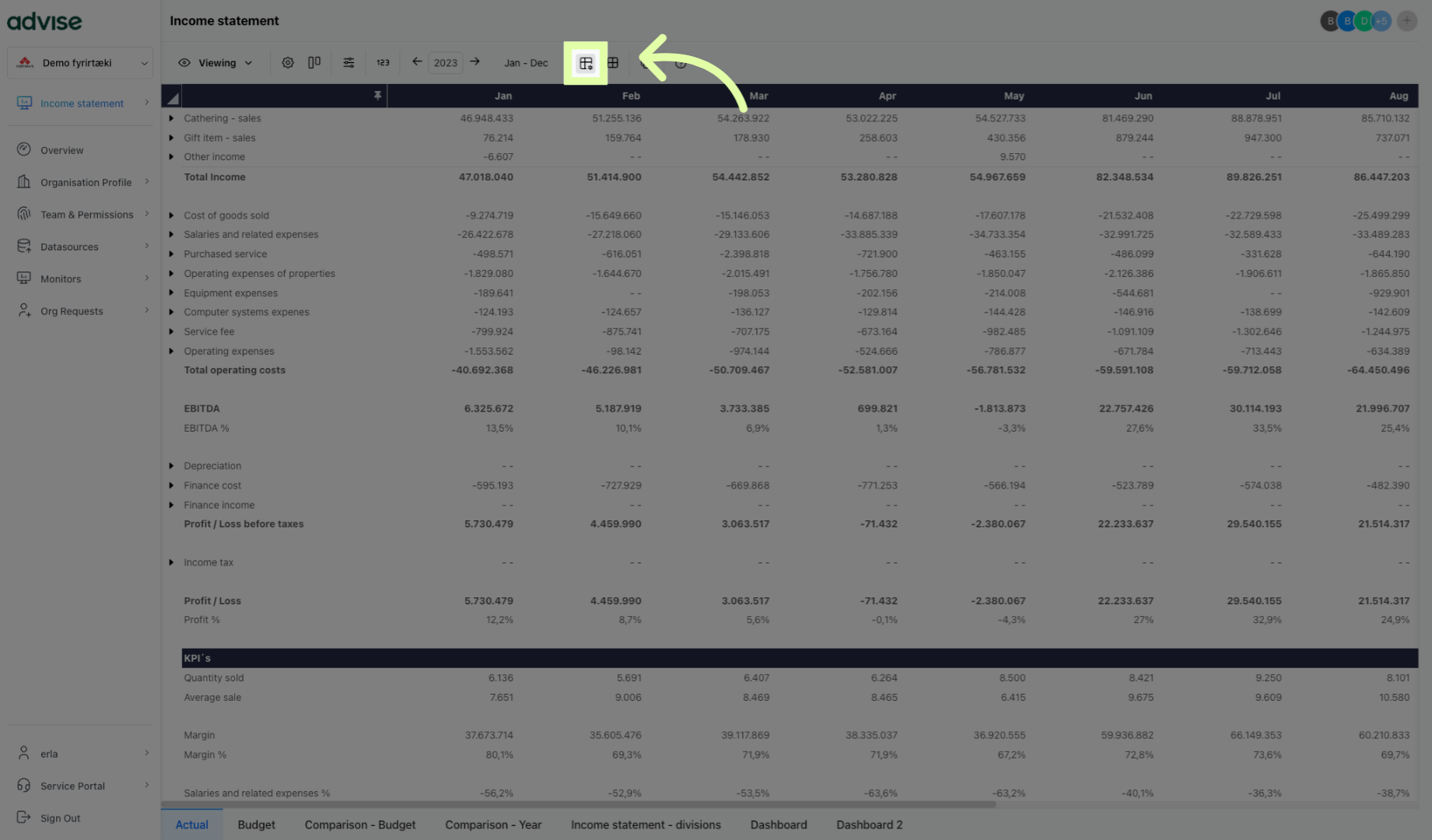
1. Click here
Click on the designated button to export your data to Excel.
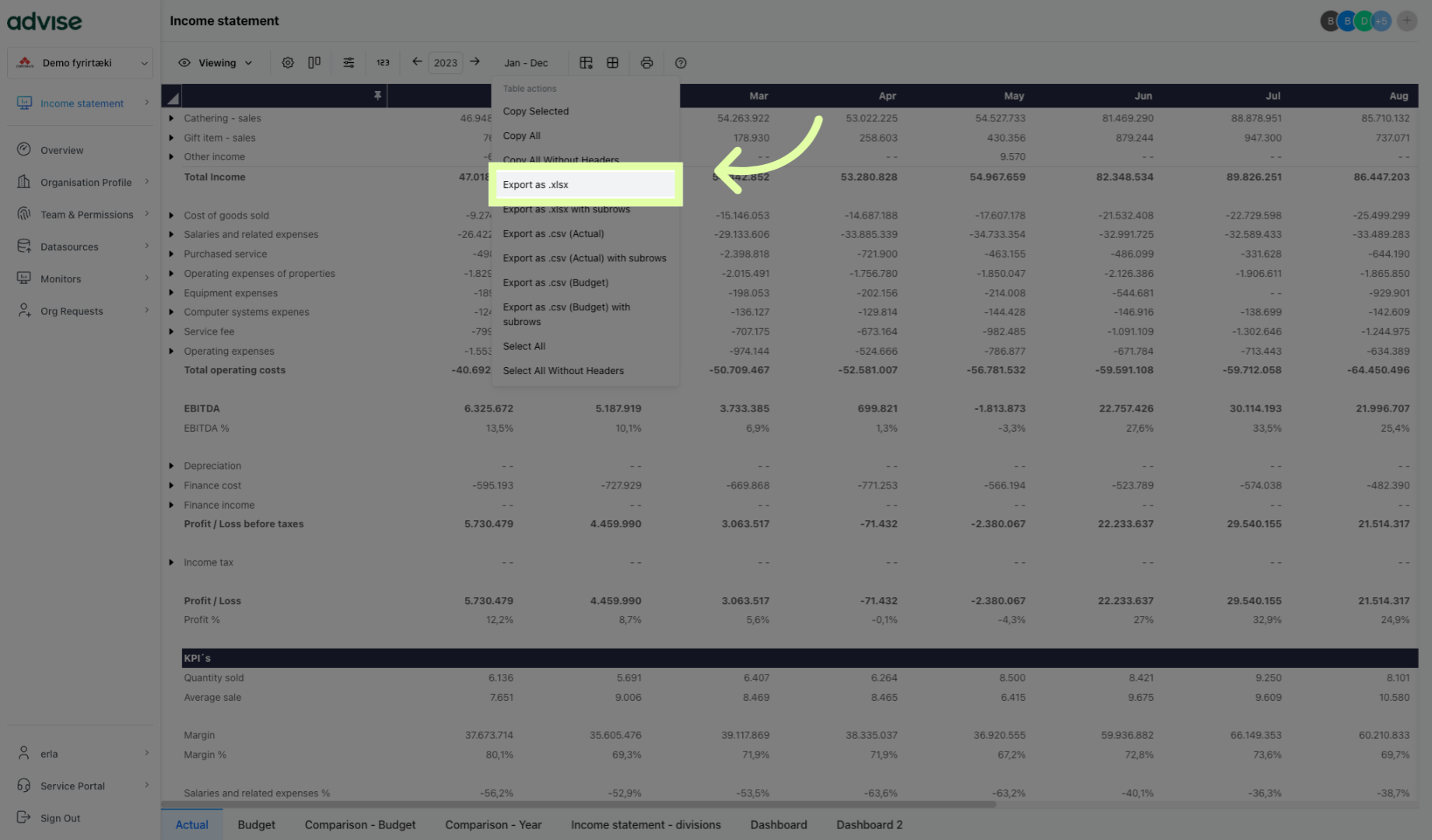
2. Click "Export as .xlsx"
Select the option to export as an .xlsx file with the displayed categories included.
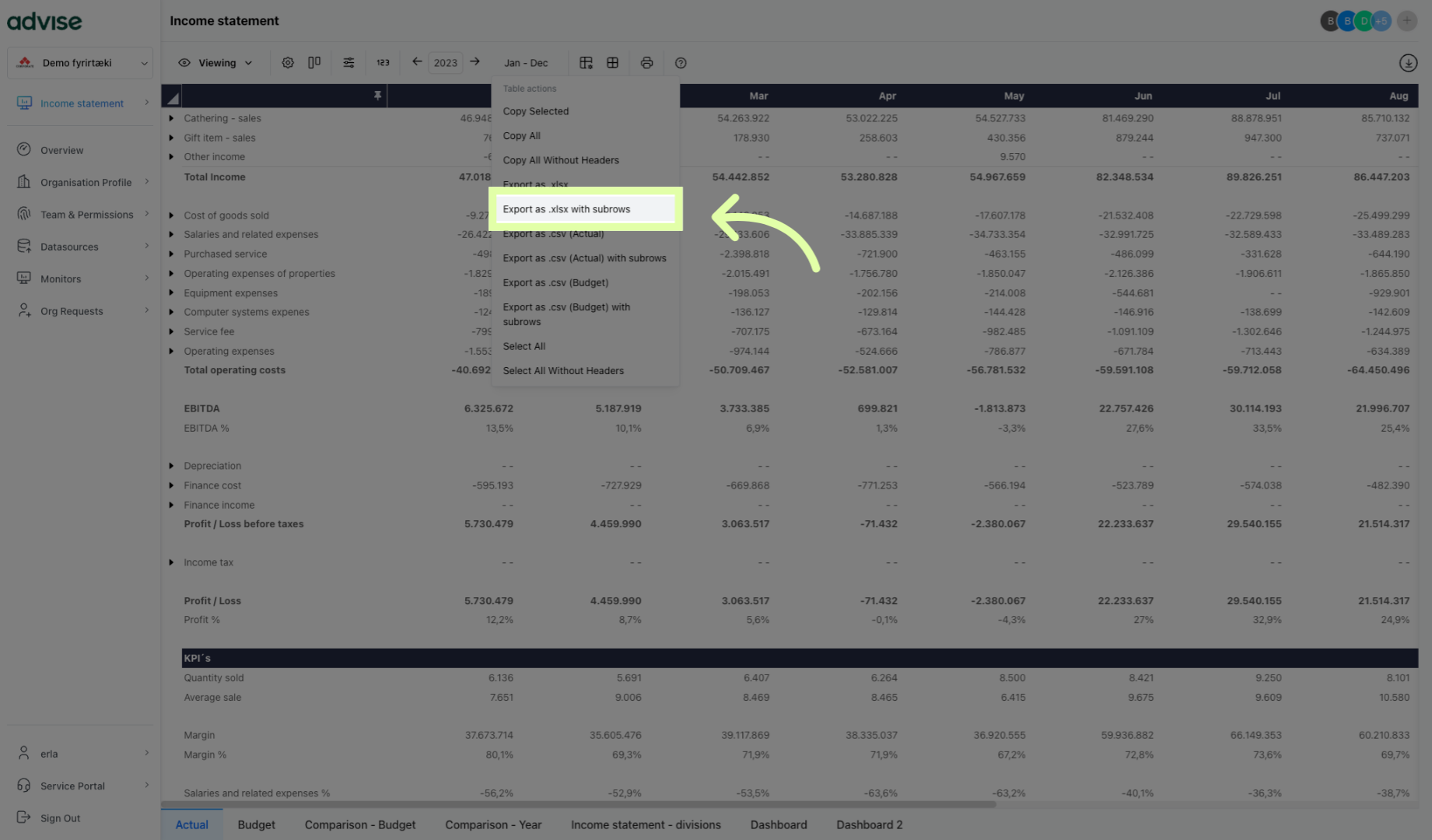
3. Click 'Export as .xlsx with subrows'
Click 'Export as .xlsx with subrows' to include all detailed data in your export.
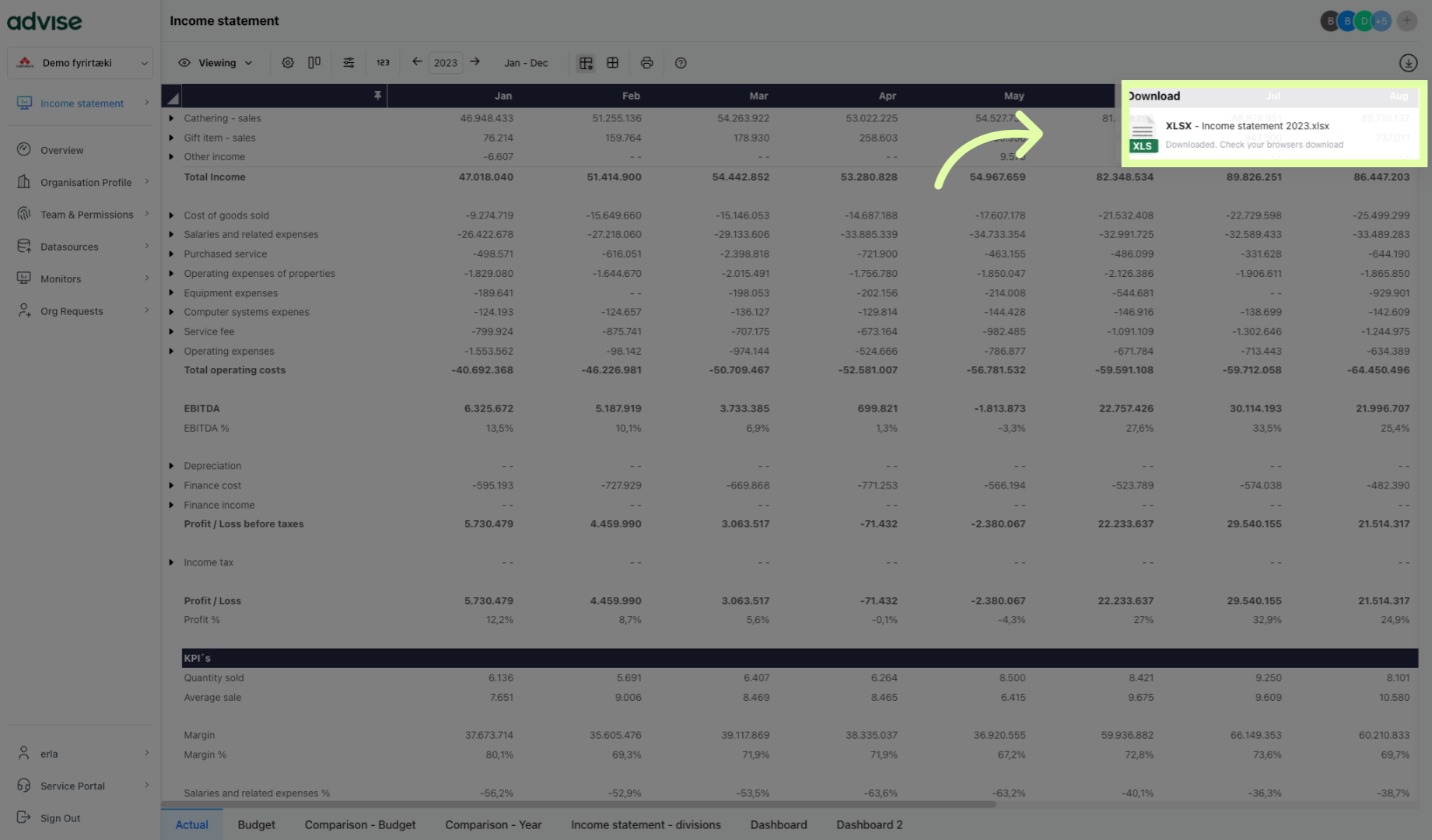
4. Click here.
After exporting, the Excel document will appear in your Downloads folder, with actual figures on one sheet and the budget on the next.
Learn how to export data in Advise Business Monitor to Excel with various options for enhanced data presentation.
.svg)