Learn how to create a comparison table in Advise Business Monitor.
Go to bm.advise.is
1. Introduction
Follow these detailed instructions to navigate through the steps seamlessly.
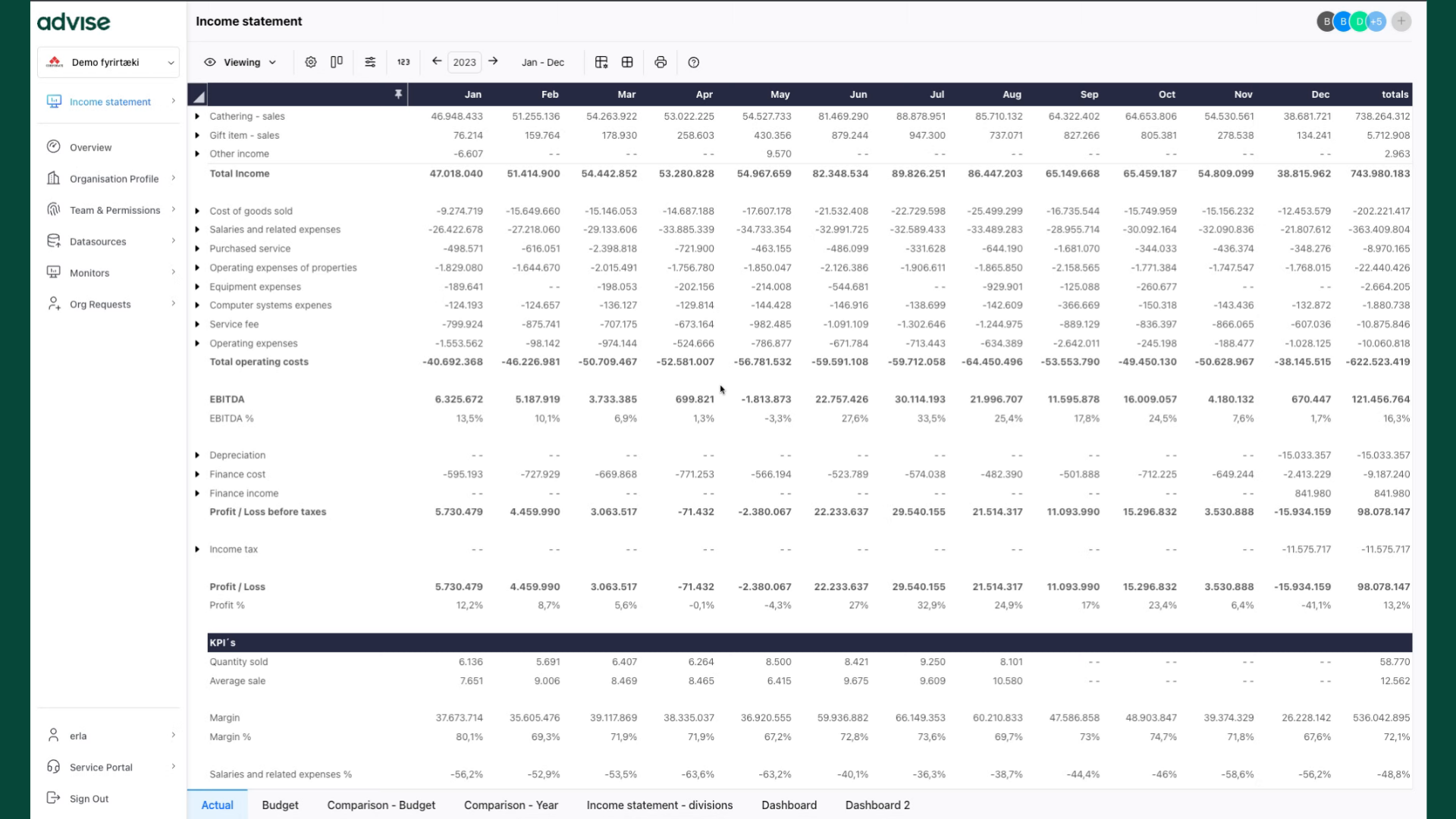
2. Click "Viewing"
Select "Viewing" section to enter into Editing mode.
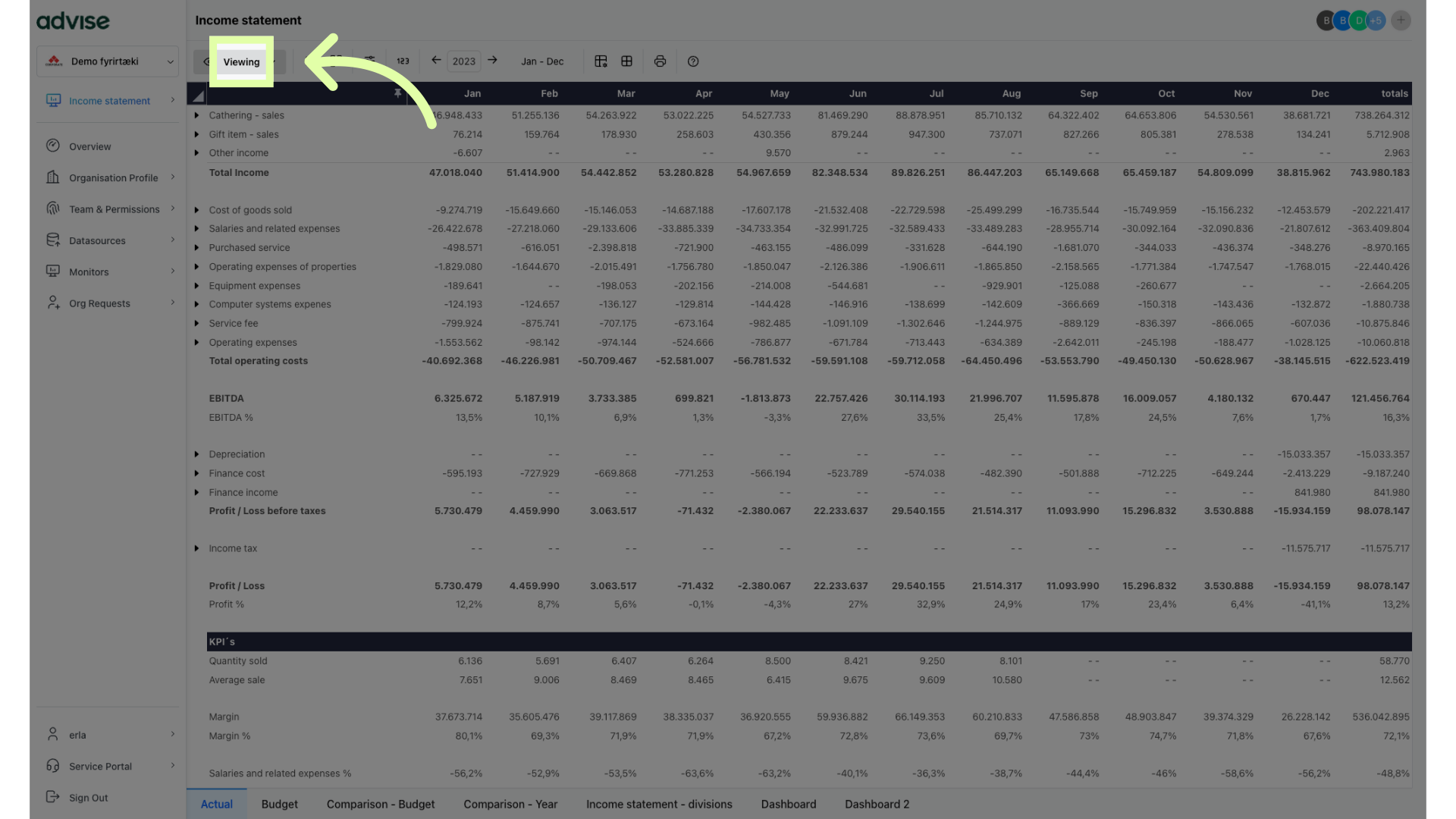
3. Click "Editing"
Navigate to the "Editing" option.
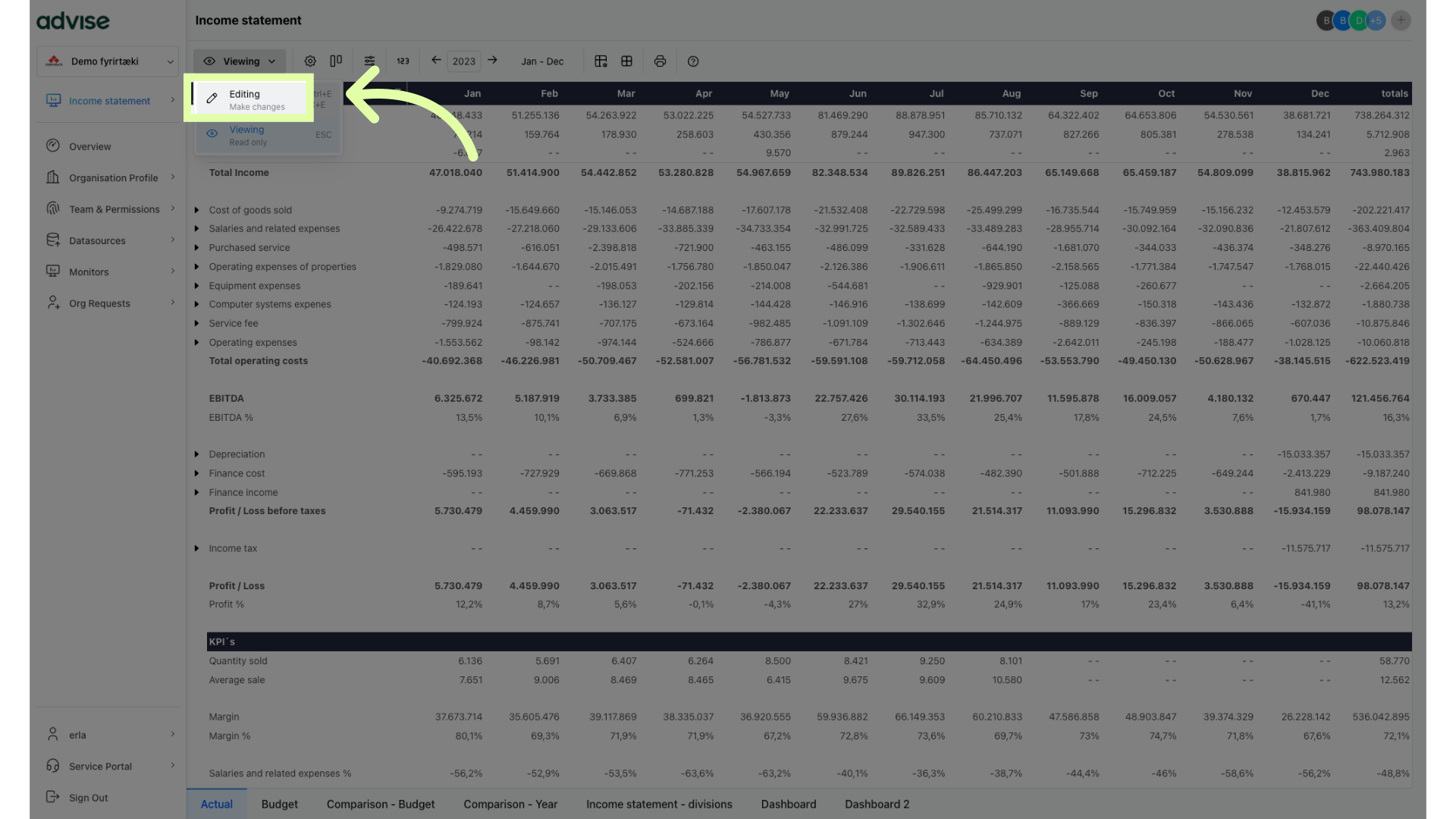
4. Click here
Click the '+' in the bottom-left corner to add a new tab.
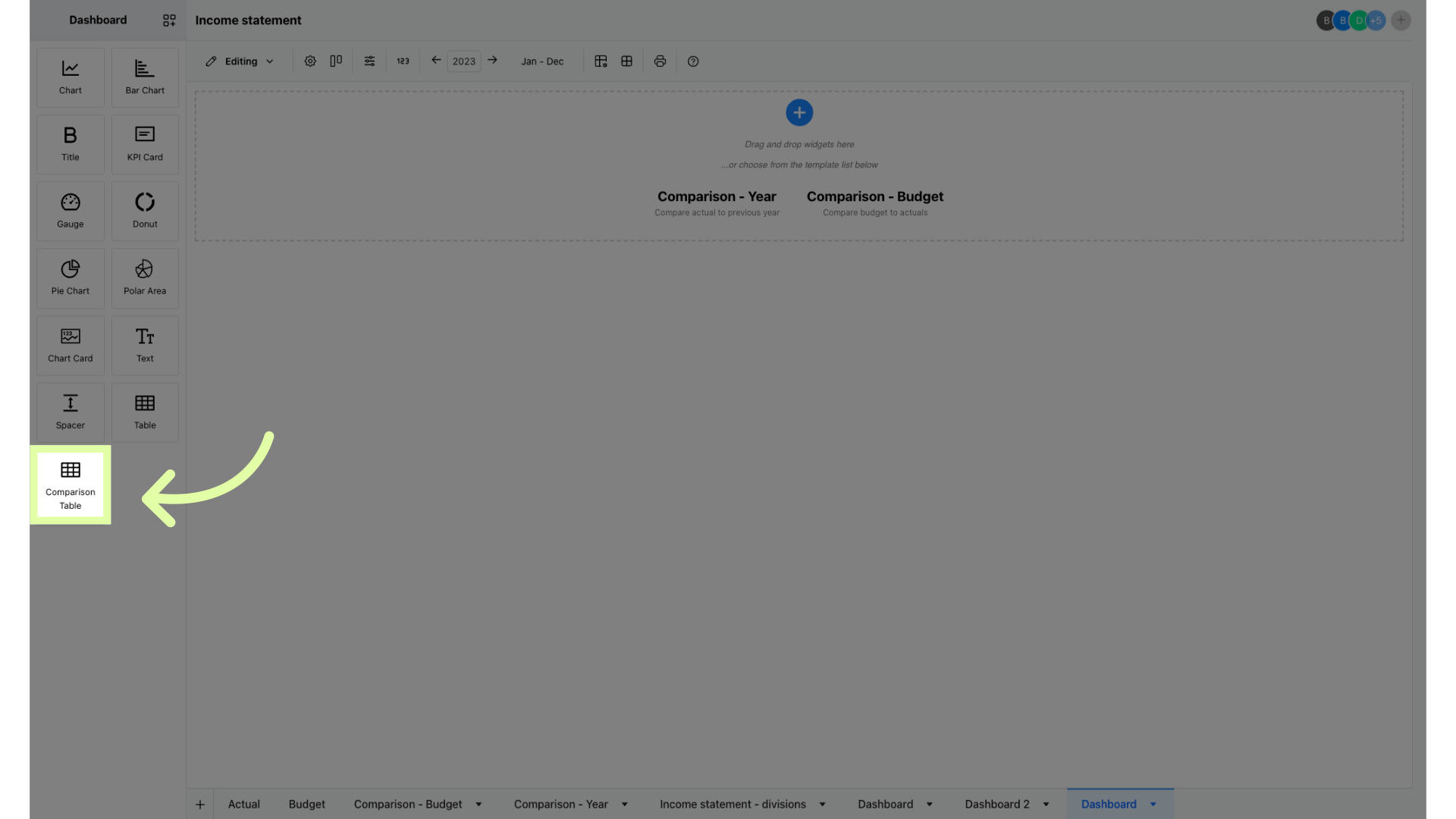
5. Click "Comparison Table" and drag
Select the "Comparison Table" feature and drag it to the center.
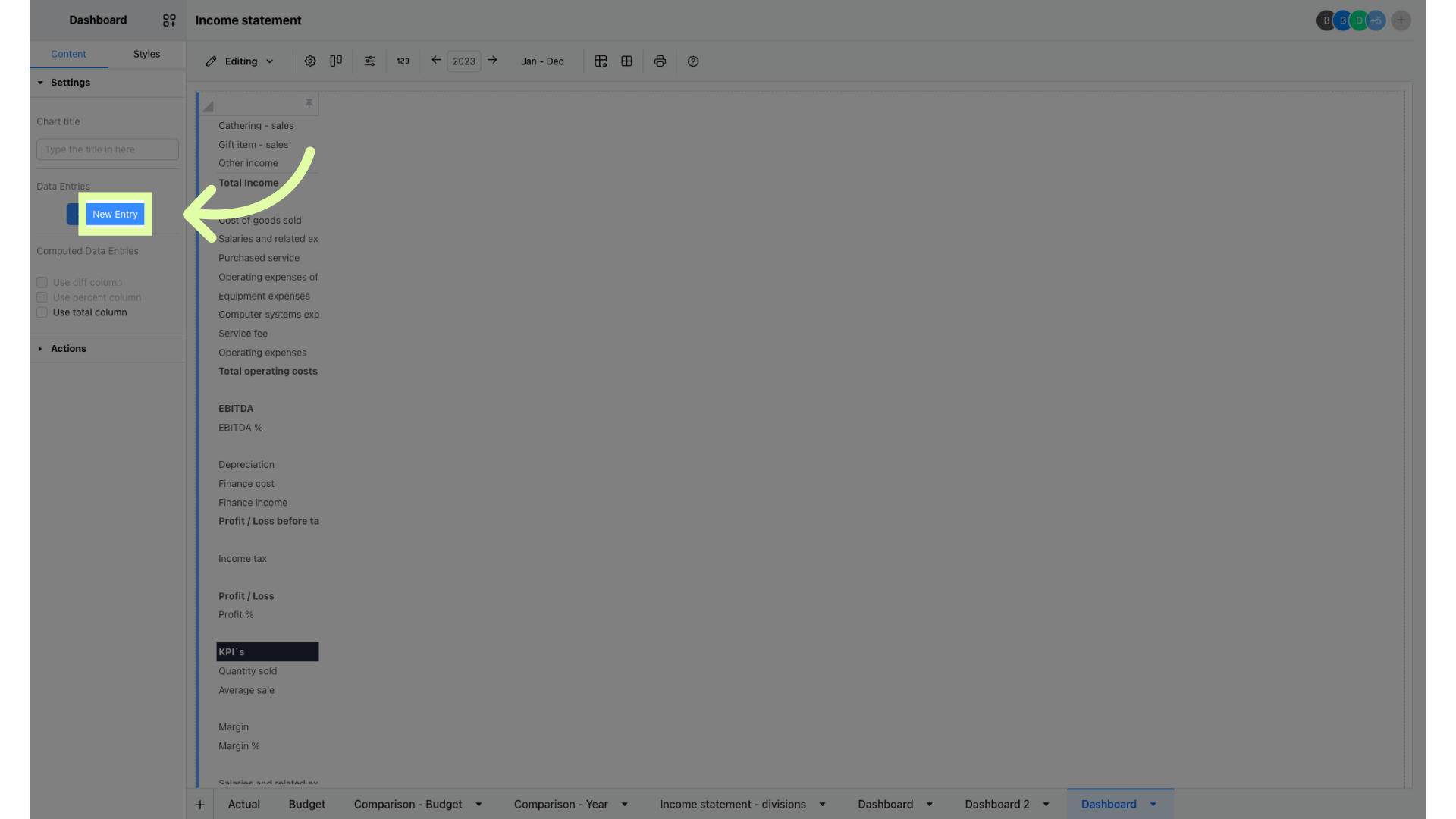
6. Click "New Entry"
Choose the "New Entry" option to add data.
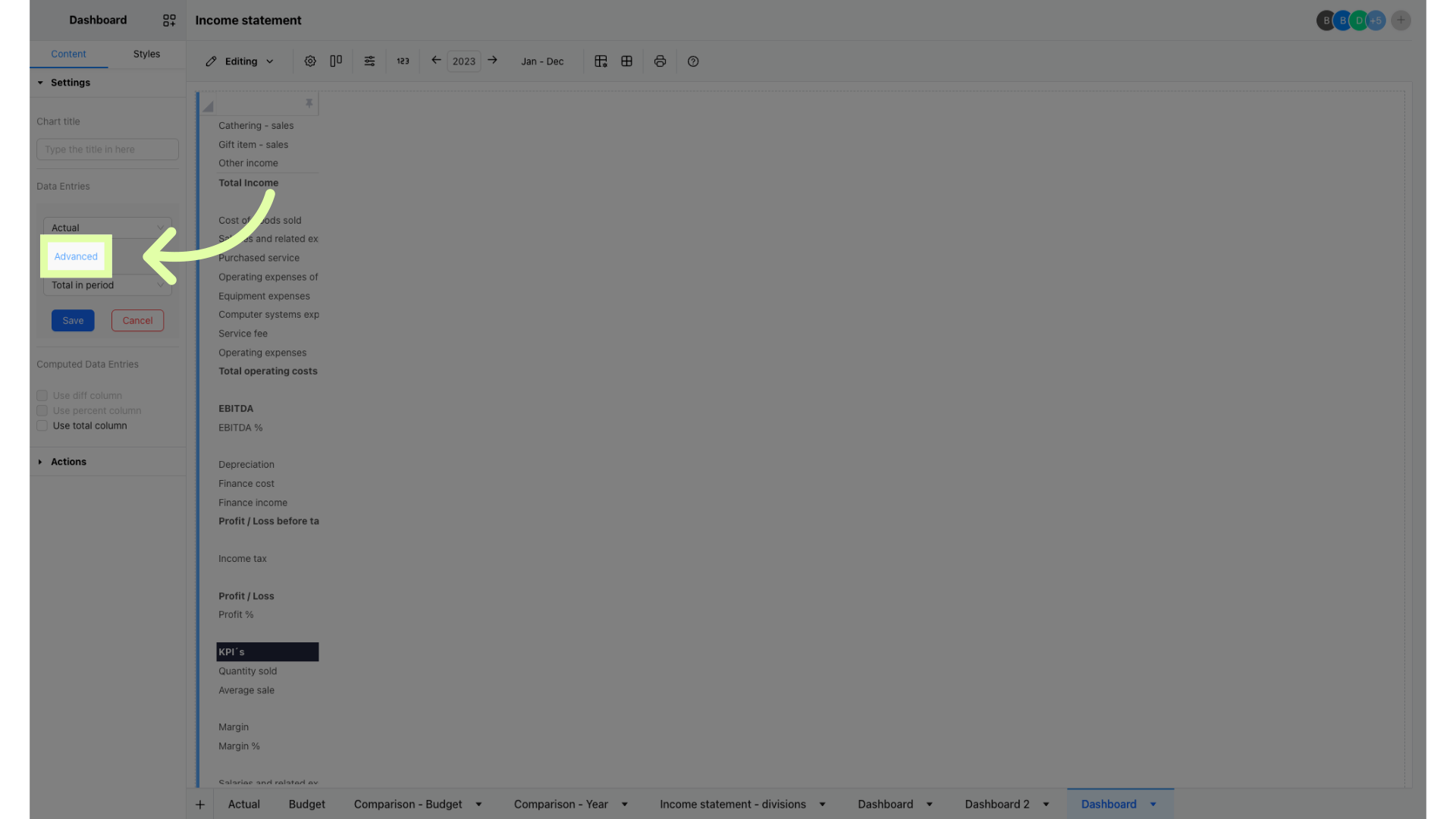
7. Click "Advanced"
Access the "Advanced" settings to select filter you have saved.
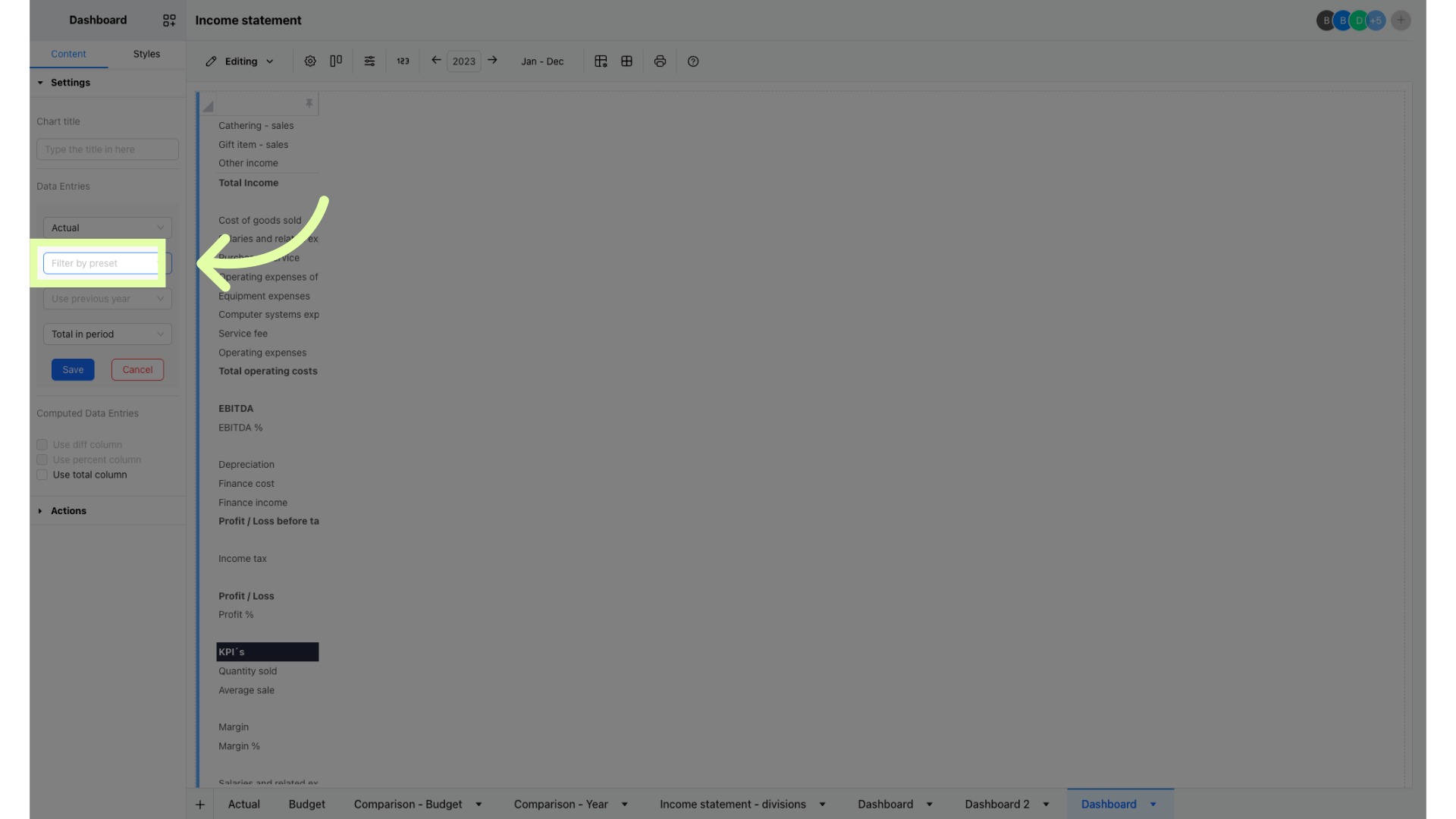
8. Click here
Click here to view the list of available filters.
9. Select the filter you want in your table
Choose the appropriate filter from the list to include in the table.
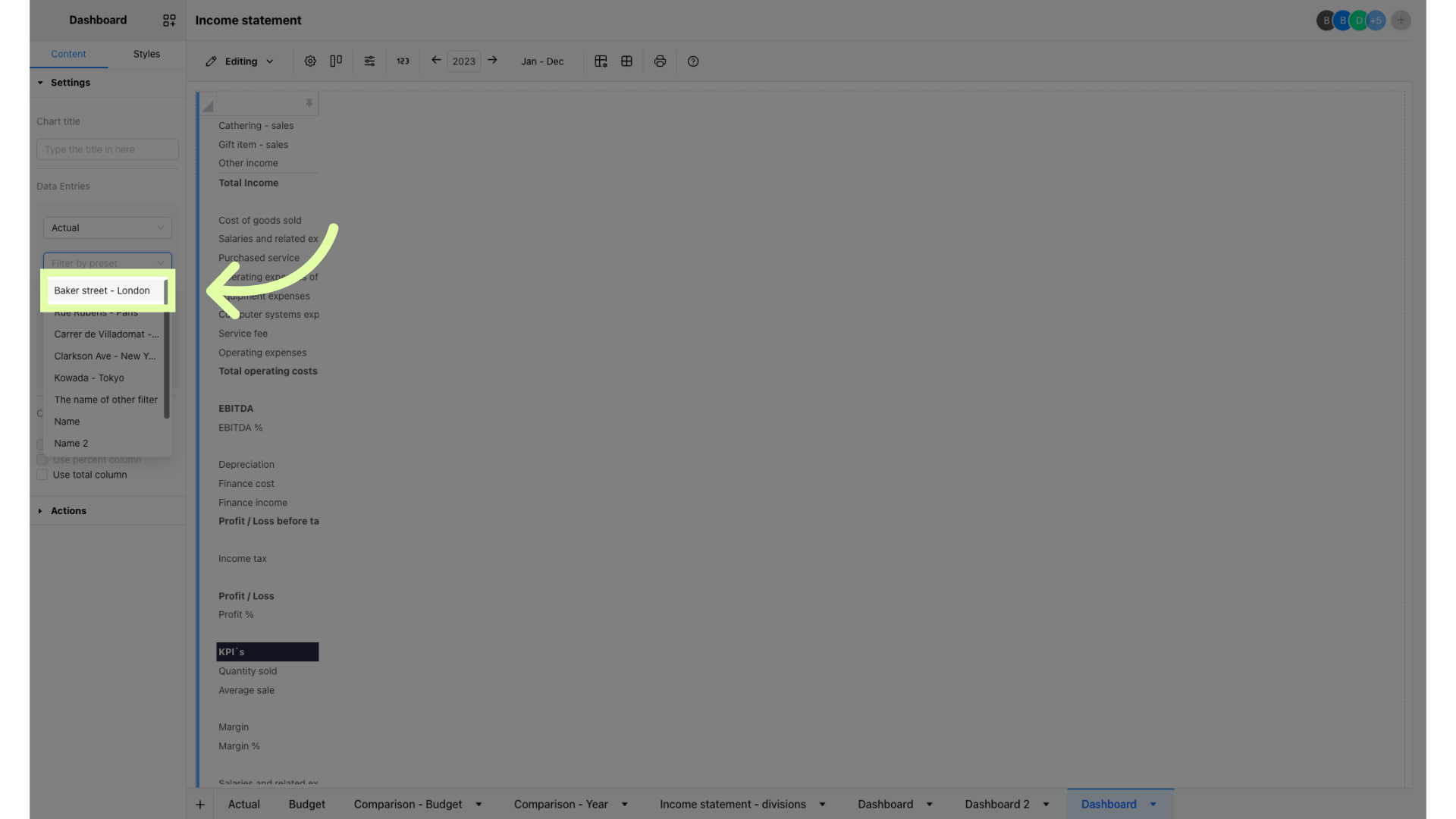
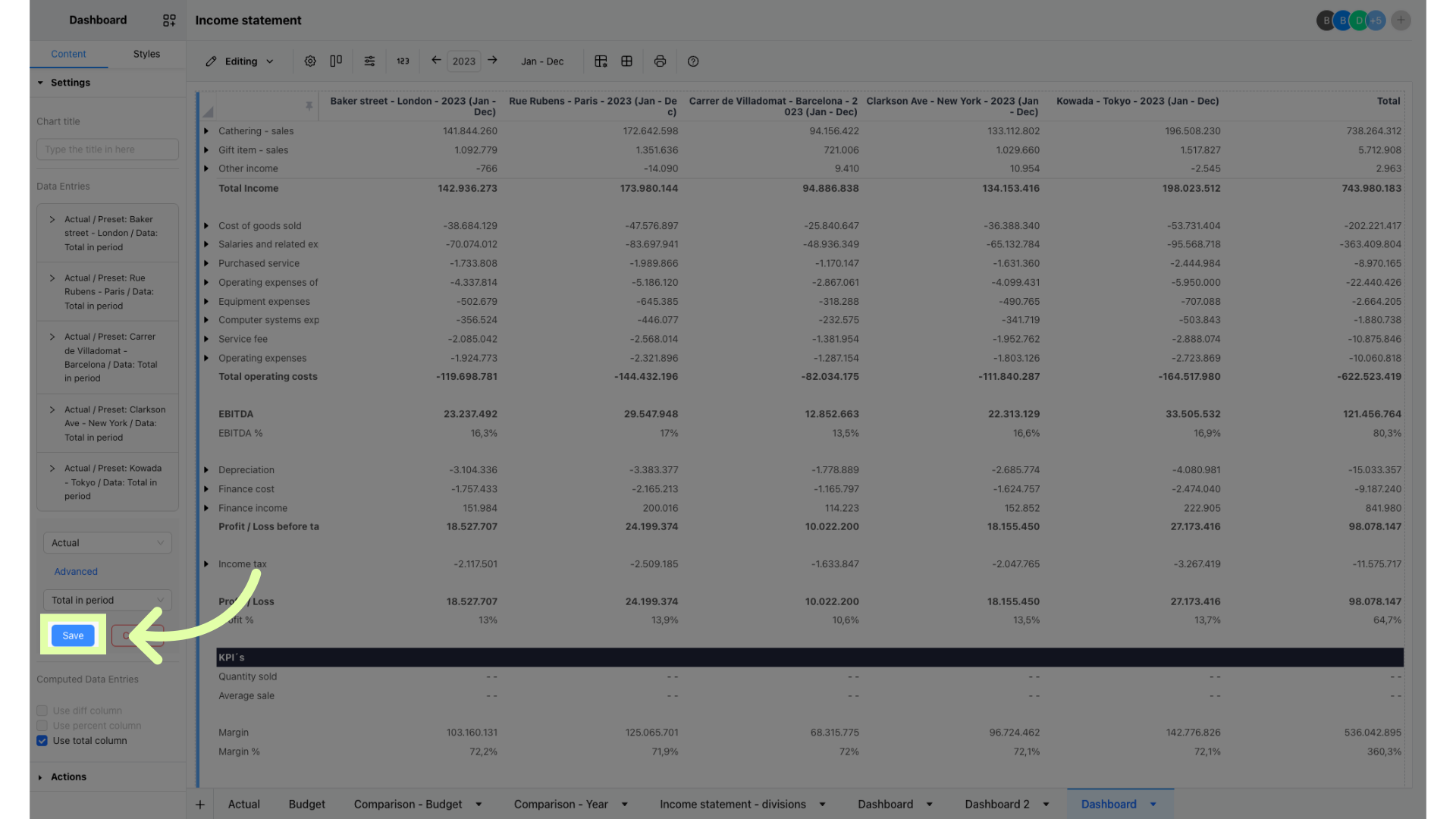
10. Click "Save"
Save the changes made.
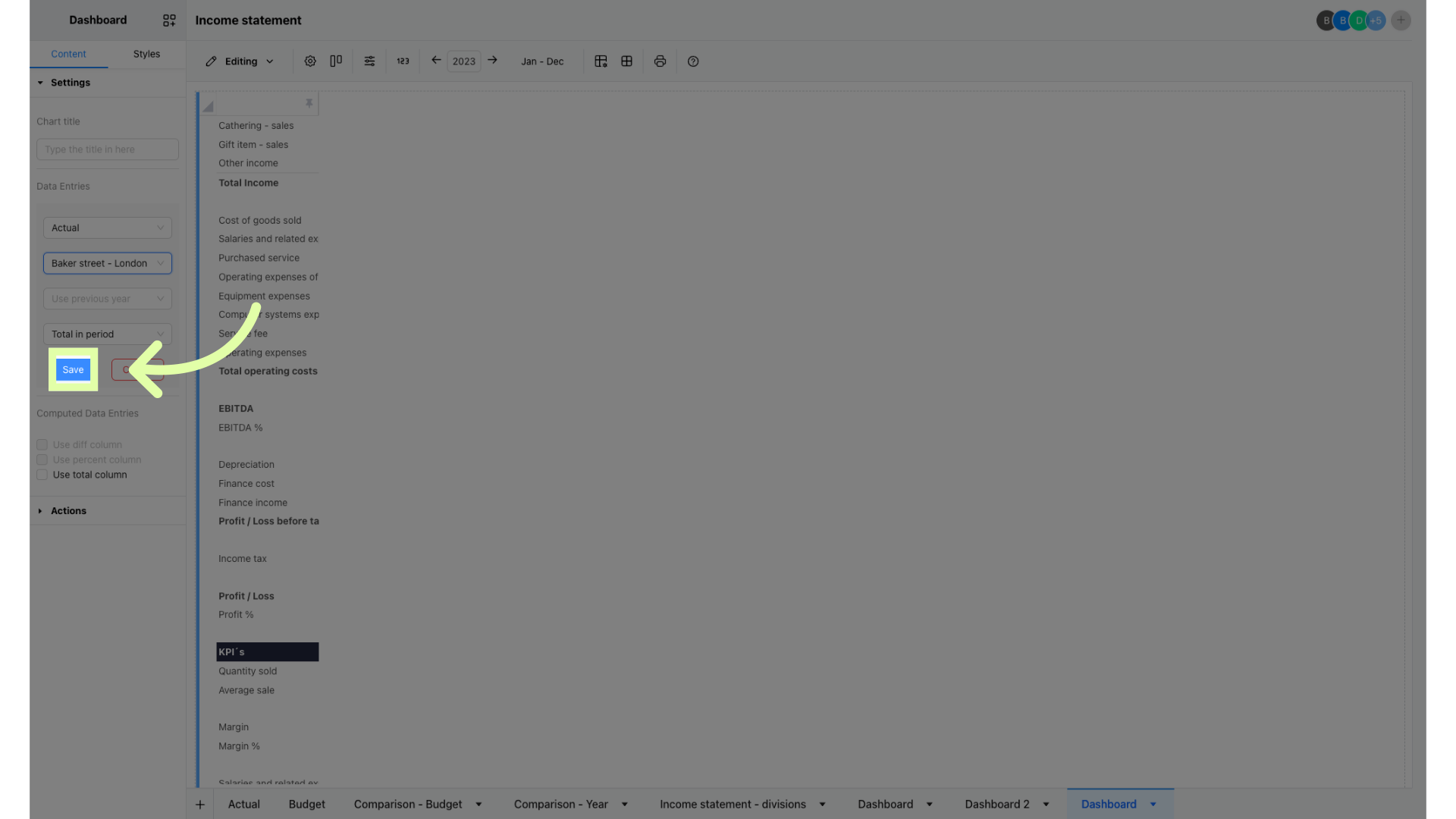
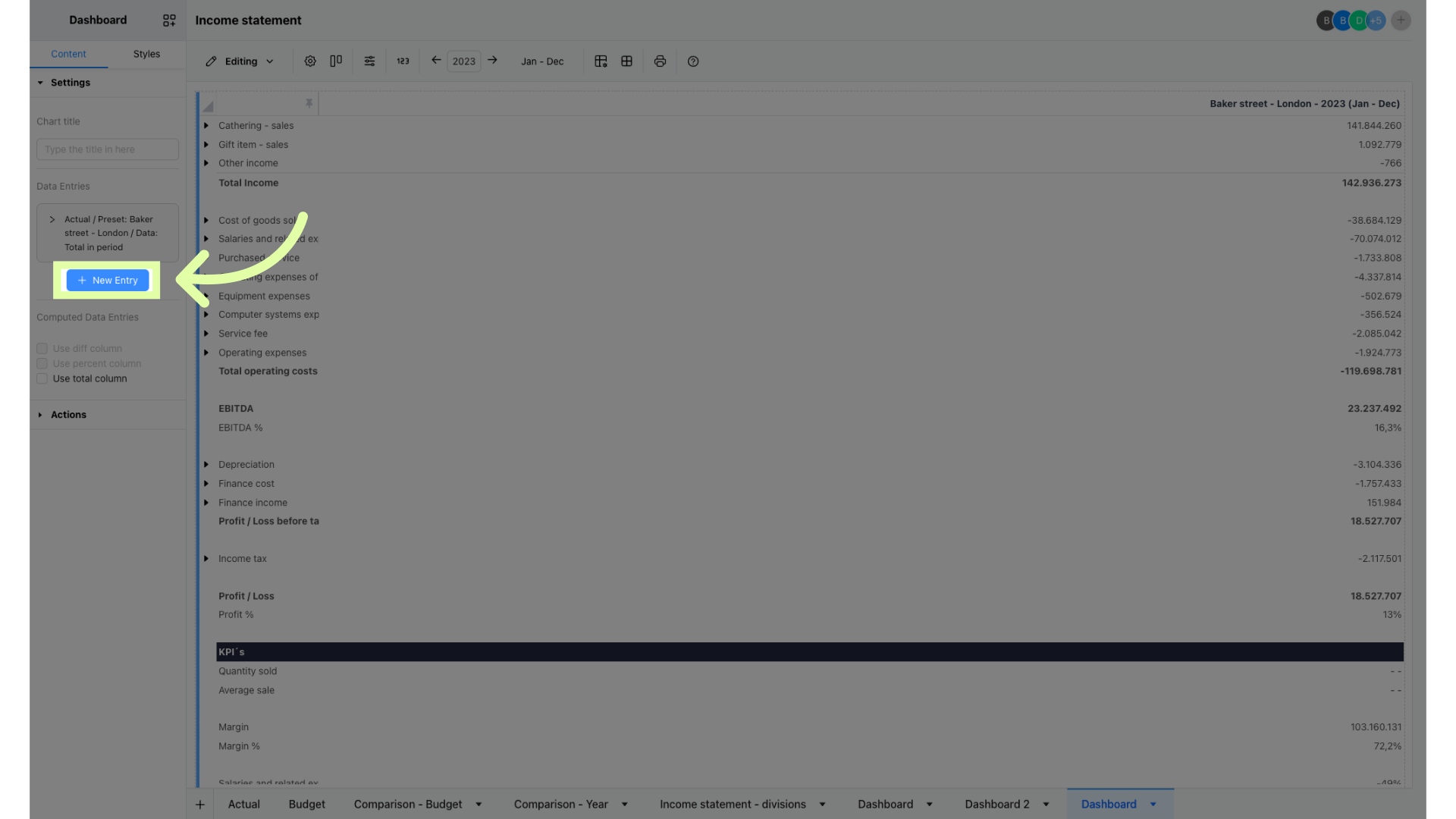
11. Click here
Click 'New Entry' to add more filters and repeat for each filter you want to add.
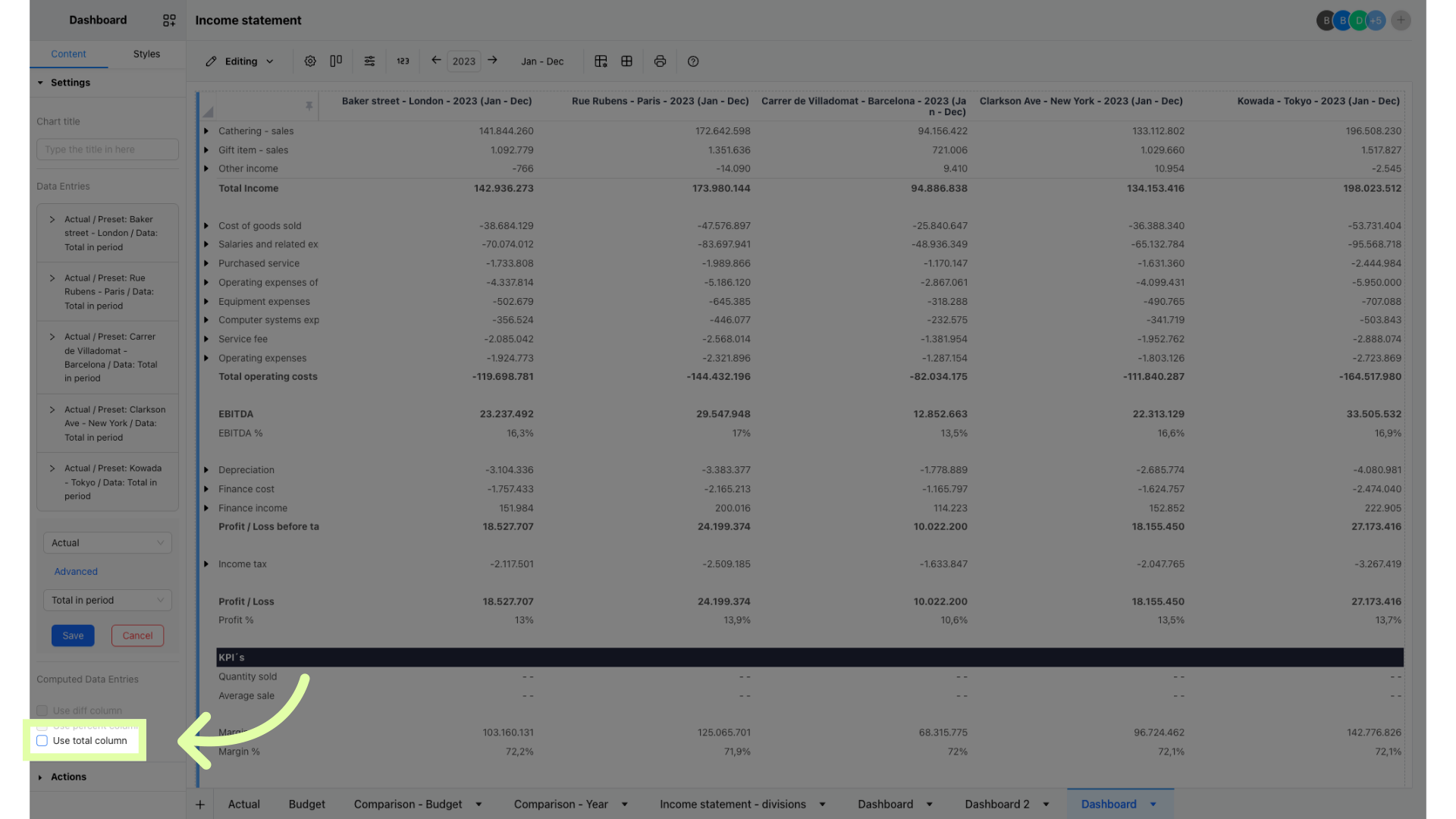
12. To add a Total column in you comparison table
Click 'Use Total Column' feature to see the total of all filters in the table.
13. Click "Save"
Save the changes.
14. Here’s what the comparison table looks like.
Here’s what the comparison table can look like.
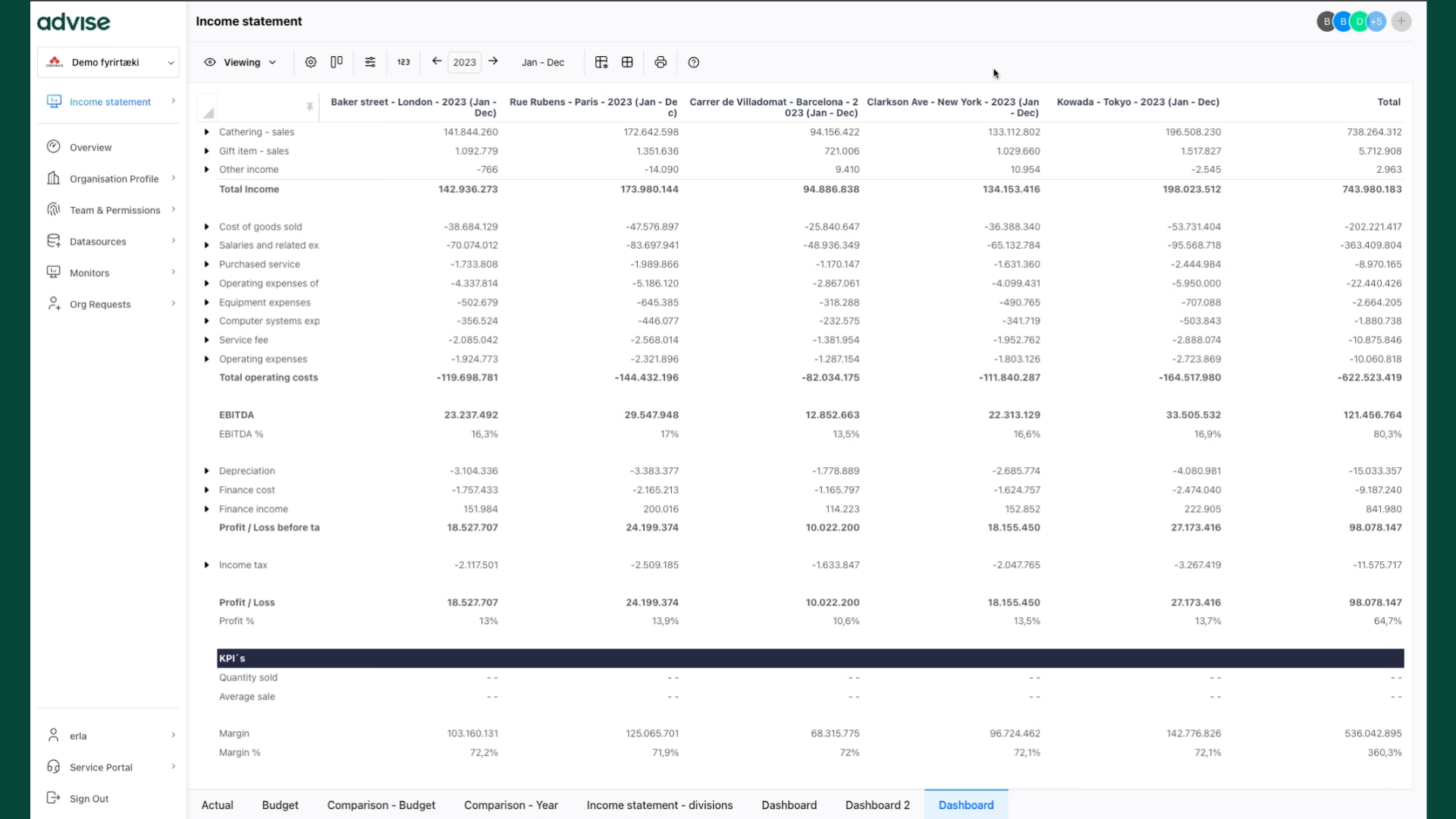
This guide walked you through the process of creating a comparison table in Advise Business Monitor.
.svg)